
Photo Recovery: File Recovery
hRangoTools
3.122.00 Reviews
- Version
- 1.0.13
- Installs
- 1.00M
- Age Rating
- Everyone
Screenshots
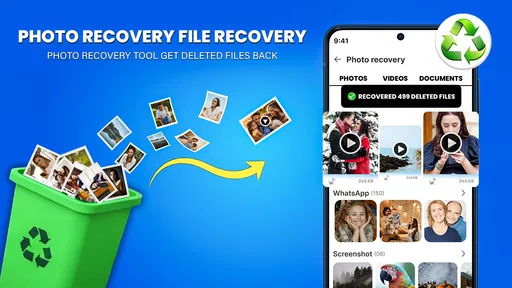
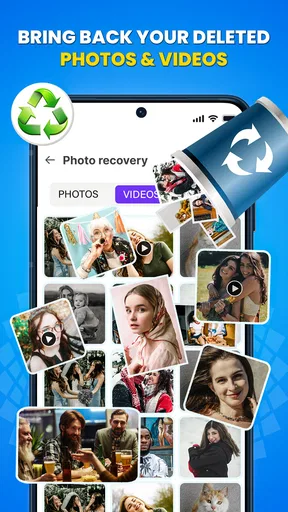
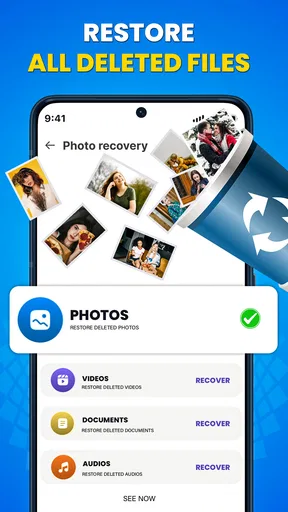
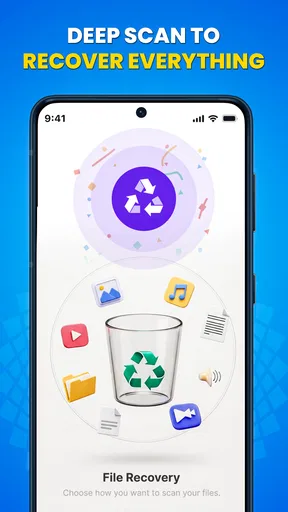
Our Review of Photo Recovery: File Recovery
 Analysis by Appyee
I tested Photo Recovery: File Recovery as a practical Android tool for one specific problem: finding photos, videos, and documents that have disappeared from the phone. It is made by hRango, sits in the Tools category, and is free to install, although some items inside the app cost between $1.99 and $29.99 each. My overall impression is mixed but useful: it can be worth trying soon after an accidental deletion, yet it is not a substitute for a proper backup system and should not be treated as a guaranteed rescue service.
The app is currently at version 1.0.13 and supports Android 7.0 or later. It has passed the one-million-install mark and carries an Everyone age rating, which makes it approachable for a wide range of phone owners. Its average score is 3.2 from roughly two thousand ratings, so the public reaction is clearly divided. That matches my experience: the idea is straightforward and potentially valuable, but recovery results depend heavily on what happened to the files before the scan began.
How Photo Recovery: File Recovery feels in everyday use
I find this app most useful when a missing file creates an immediate decision: should I keep searching, or stop using the phone and try recovery? Its focused purpose makes that first step feel manageable, but I would still treat every result as a candidate until the saved file opens properly. That distinction matters most when the material is personal or time-sensitive, and it leads naturally to how I would approach a first scan.
A focused tool for an urgent moment
The best time to use this app is immediately after noticing that something important has vanished. Imagine deleting a folder while clearing storage, emptying a gallery by mistake, or discovering that a document is no longer visible before an appointment. In that situation, a dedicated recovery app is more convenient than searching through unrelated file-management menus.
I like that the purpose is obvious from the first interaction. This is not a photo editor, cloud gallery, or general cleaner pretending to solve every storage problem. The focus is recovery, covering personal images as well as videos and documents. That narrow purpose makes it easier to decide whether the app belongs on your phone: if you need to retrieve missing files, it is relevant; if you want automatic protection against future loss, it is the wrong category of tool.
There is an important practical distinction between seeing a file in a scan and getting a usable file back. A recovery result may have an incomplete name, an awkward location, or damaged content depending on how the phone handled the deleted space. I would therefore treat the scan as an investigation rather than a promise. Before paying for anything, I would check whether the preview is recognizable and whether the recovered copy actually opens.
The workflow I would use after an accidental deletion
My first step would be to stop creating new content on the phone. I would avoid taking more photos, downloading large files, recording video, or installing several other recovery utilities. Deleted data can become harder to retrieve when new information occupies the same storage space. This is one of the most useful habits around any recovery app, and it matters more than repeatedly pressing scan.
Next, I would open Photo Recovery: File Recovery and begin with the file type that matters most. If the missing item is a single family photo, I would not spend time reviewing every document result. If it is a work file, I would concentrate on document results and check the original folder or file name where possible. Narrowing the search makes the result list easier to judge and reduces the chance of saving the wrong duplicate.
After finding a candidate, I would compare its dimensions, appearance, and opening behavior with what I remember. A thumbnail that looks correct is encouraging, but I would still open the saved copy in another app. For a document, I would scroll through several pages; for a video, I would play it beyond the first few seconds. This catches files that have a recognizable beginning but are incomplete.
I would also save recovered material somewhere sensible rather than leaving it only in a temporary result area. If the app offers a choice of destination during the process, I would choose a separate folder and then copy the successful files to a computer or cloud service. The point of recovery is to create a stable second copy, not to move the only remaining version into another uncertain location.
Where it fits beside the usual alternatives
Before using a recovery utility, I would always check the phone’s recently deleted area, the gallery’s trash folder, and any cloud photo service already connected to the device. Those options are usually safer because they preserve the original organization and often avoid the complications of reconstructing deleted storage. If the file is present there, Photo Recovery: File Recovery is unnecessary.
The app becomes more interesting when those ordinary places are empty. Compared with a desktop recovery program, it is more convenient because it works directly on the Android phone and does not require moving storage to another device first. The trade-off is that a computer-based tool may provide more detailed control over partitions, file systems, and recovery destinations. For a serious business document or irreplaceable archive, I would prefer a method that keeps the original storage untouched as much as possible.
It also differs from a backup app. Backup software protects files before they disappear; this app attempts to locate material after the fact. That means the two tools solve opposite stages of the problem. I would use Photo Recovery: File Recovery for an emergency, then establish automatic backups afterward. Relying on repeated scans is a poor long-term plan, especially for photos that matter emotionally.
What the current release tells me
Version 1.0.13 suggests that the product is still relatively early in its development rather than a long-established recovery suite. I see that as a reason to judge the current build on its present workflow, not on what future updates might eventually add. The app already has broad reach, with more than a million installs, but popularity alone does not prove that every device or deletion scenario will produce the same result.
The release date of March 5, 2026 places the current product in a very recent stage. That matters for expectations: a newer utility can feel simpler and more focused, but it may also need continued refinement around device compatibility, result organization, and explanations during scanning. I would keep the installed version updated and read the on-device prompts carefully instead of assuming that a later build will automatically recover files that the current one cannot find.
For someone who already used an earlier build, the most sensible way to assess the update is not by expecting a dramatic redesign. I would look for smoother scanning, clearer result handling, and fewer confusing steps when saving a recovered item. Those are the areas that directly affect whether a stressful recovery attempt feels manageable. Without a specific change log to rely on, I would separate those practical hopes from confirmed behavior and judge the installed build for itself.
Strengths that matter during a real recovery attempt
The biggest strength is immediacy. When a missing image is still on your mind, opening a tool designed for photos and files is faster than learning a complex desktop workflow. That can be especially helpful for a family member who is comfortable with a phone but not with connecting storage to a computer.
Another useful quality is the range of file types suggested by its purpose. A gallery-focused utility might be enough for pictures, but Photo Recovery: File Recovery is also aimed at videos and documents. That gives it a place in situations such as losing a scanned receipt, a downloaded form, or a short recording along with ordinary camera images.
The app is free to install, which lets a user investigate before committing money. I consider that important because recovery is uncertain by nature. A person should be able to determine whether relevant results appear and whether those results look healthy before deciding whether an optional purchase is worthwhile. The pricing structure still deserves attention, since individual in-app items range from $1.99 to $29.99 and the most expensive option represents a meaningful decision for a one-time emergency.
The Everyone rating also makes the app easy to consider for a shared household device. Still, an age rating is not a technical guarantee. Parents, older relatives, and less experienced users may need help identifying the correct files and avoiding unnecessary purchases. I would not hand the phone over and assume the recovery process is self-explanatory simply because the app is in a general tools category.
Limitations I would take seriously
Recovery depends on storage conditions, not just on the app’s interface. If a file has been overwritten, badly fragmented, encrypted, or removed through a process that leaves little recoverable information, a scan may return nothing useful. Even when a result appears, filenames and folder structure may not be preserved in the way a person expects.
That uncertainty makes the app a poor choice for anyone who needs a guaranteed result on the first attempt. If the missing material is legally important, part of a business archive, or the only copy of irreplaceable media, I would avoid experimenting repeatedly on the original phone. A specialist service or a carefully controlled computer workflow may be more appropriate, even if it is less convenient.
I also would not use the tool as an excuse to postpone backups. A recovery app is reactive, and reactive tools are always working after something has already gone wrong. Automatic photo syncing, periodic computer copies, and a second location for important documents remain more dependable. Photo Recovery: File Recovery can be the emergency bridge, but it cannot recreate a file that was never safely preserved.
Privacy is another reason to slow down. Recovery results can include personal pictures, private videos, identity documents, and work files. I would review every result before saving or sharing it, and I would avoid recovering sensitive material into a public folder. I would also read each permission or purchase prompt in the current build rather than granting access automatically. The more personal the missing content, the more carefully I would handle the entire process.
Three less obvious habits that improve the experience
First, I would recover the smallest important set before attempting a massive cleanup. Saving hundreds of ambiguous thumbnails creates a second problem: sorting through clutter and possibly overwriting useful space. Start with the one photo, video, or document that proves whether the scan is worthwhile, then expand only if the result is healthy.
Second, I would keep the phone powered and reasonably idle during a long search. A recovery attempt interrupted by a shutdown or an aggressive storage-cleaning routine is harder to evaluate. I would close unrelated apps, avoid recording new media, and leave enough free space for recovered copies. These steps do not improve damaged data, but they make the process less likely to be disrupted.
Third, I would use the recovered file as evidence, not just the thumbnail. For a picture, zoom into areas with fine detail; for a video, check sound and movement; for a document, test whether text can be selected or pages can be read. This is a simple quality-control step that many people skip when they are relieved to see a familiar preview.
A fourth habit is useful when several versions appear: preserve the original-looking candidate before renaming or editing it. Keep one untouched copy, then create a separate organized copy for everyday use. If a file turns out to be partially damaged, the untouched version is still available for another recovery attempt or professional analysis.
Who should install it, and who should skip it
I would recommend trying this app to an Android owner who has just deleted a small number of personal files and has already checked the gallery trash and cloud backups. It is also reasonable for someone who needs an accessible first step before considering a computer-based recovery method. The free installation lowers the barrier to checking whether anything useful can still be found.
I would be more cautious for a person with a nearly full phone, a heavily used device, or a large amount of sensitive material. In those cases, the results may be harder to sort and the consequences of mishandling a file are greater. I would also skip it as a routine “cleaner” or storage manager; its value is tied to a specific recovery event, not everyday maintenance.
For iPhone owners, this review does not change the basic advice: first use the platform’s own recently deleted and backup options. The app is presented here as an Android tool, so I would not assume that an Android recovery workflow applies to iOS. On Android, the minimum supported system is Android 7.0, which includes many older devices, but hardware age and storage behavior can still affect the practical outcome.
What I would watch in future updates
As hRango continues developing the app, I would pay attention to clearer separation between files that are fully usable and files that are only partial matches. Better explanations during scanning would help people understand why a result may have an unfamiliar name or incomplete content. I would also value a more transparent recovery workflow that makes the destination and final file status obvious before the user leaves the screen.
Version 1.0.13 is a useful point to evaluate, but it should not be treated as the final word on the product. Future releases may improve the experience, yet I would want those improvements to be visible in practical tasks: finding a specific document, checking a recovered video, and saving a clean copy without confusion. Those are more meaningful than a cosmetic redesign during an emergency.
My final recommendation is therefore conditional. Photo Recovery: File Recovery is worth a careful first attempt when a file has just disappeared, especially because it is free to install and covers more than photographs. I would check ordinary backups first, stop using the phone heavily, preview results closely, and avoid paying until a genuinely useful recovery is visible. It is a sensible emergency tool from hRango, but the safest conclusion is still to recover what you can and then protect the remaining files with a proper backup routine.
Verdict
Strengths of Photo Recovery: File Recovery
- Simple interface makes recovery tools easy to find and use.
- Can scan common image formats stored on supported devices.
- Previewing files helps confirm photos before restoring them.
- Useful for recovering recently deleted pictures by mistake.
- Recovered files can usually be saved or shared from the app.
Limitations of Photo Recovery: File Recovery
- Recovery success depends heavily on whether deleted data was overwritten.
- Deep scanning may take considerable time on large storage volumes.
- Some features or unlimited recovery may require a paid upgrade.
- Results can include duplicates, thumbnails, or unrelated cached images.
- Restored files may lose their original names, folders, or metadata.
Other Releases by hRango
View All
Car Master Race - Car Games
Racing4.4
Similar Picks in This Category
View All
Google LLC4.0

Gboard - the Google Keyboard
Google LLC4.5

Google Play services
Google LLC4.3

Google Play Store
Google LLC4.9

Files by Google
Google LLC4.5

SHAREit: Transfer, Share Files
Smart Media4U Technology Pte.Ltd.4.3
Frequently Asked Questions
What is Photo Recovery: File Recovery used for?
Photo Recovery: File Recovery is designed to help users find and restore deleted or accidentally removed photos and other supported files stored on an Android device. After scanning available storage, it may display recoverable items so you can preview and save selected files. The results depend on how long ago the data was deleted and whether the storage space has been overwritten.
Can Photo Recovery: File Recovery recover every deleted photo?
No recovery application can guarantee that every deleted photo will be restored. The best chances usually exist when the file was removed recently and the phone has not been heavily used afterward. New downloads, recordings, app installations, and system activity can overwrite deleted data. Some devices, file systems, and security settings may also limit what the app can locate during a scan.
Does the app require root access to work?
The app may offer basic scanning without root access, allowing it to search areas that Android makes available to ordinary applications. However, deeper scans or access to certain protected locations may require additional permissions or root access, depending on the device and Android version. Before downloading, check the app’s current requirements because supported features can vary between phones.
Is Photo Recovery: File Recovery safe to use?
The app should be downloaded from a trusted official store and reviewed carefully before installation. During setup, pay attention to the permissions it requests, especially access to photos, media, files, or storage. Avoid granting unrelated permissions. You should also review its privacy policy to understand whether scans, file information, or usage data are collected, shared, or processed on the device.
How can I improve the chances of recovering my files?
Stop using the device as soon as you notice that important files are missing. Avoid taking new photos, downloading applications, recording videos, or moving large amounts of data, since these actions can overwrite recoverable information. Install the recovery tool only when necessary, scan as soon as possible, preview the results carefully, and save recovered files to a different folder or external location.
